How to Make a PDF File Searchable (Free and Easy Methods)
By PageTranslate Team · · 4 min read
Here is how to make a PDF file searchable for free. Run OCRmyPDF on it with one command, then confirm the result.
ocrmypdf input.pdf output.pdf
That adds an invisible text layer under every page image, so the page looks the same and Ctrl+F, copy and paste now work. If you'd rather click than type, NAPS2 does the same job from a free desktop app, and both are covered below.
The step people skip is the language.. In my test a Spanish scan read with the default English setting came back with 85 percent of its words and 4 of 74 accented ones, and with -l spa it came back with 99.6 percent and 73 of 74. The command above is right only for English pages.
Scans in six languages are read for you. Exact price before you pay.
Why some PDFs aren't searchable
A scanned PDF is usually just a stack of page pictures, so there are no characters to find. A searchable PDF carries an invisible OCR text layer lined up with each picture. The PDF specification calls the technique text render mode 3, "neither fill nor stroke", which is how OCR tools hide the words without changing how the page looks.
The quick test is to try selecting one sentence, or press Ctrl+F (Cmd+F on a Mac) and search for a word you can see. If nothing highlights, there is no text layer. My Spanish test scan gave 0 words from pdftotext before OCR.
The fastest free method, OCRmyPDF
OCRmyPDF is free software (MPL-2.0) that drives Tesseract. On a Mac, brew install ocrmypdf works, and Debian or Ubuntu has sudo apt install ocrmypdf, though the packaged version can lag. The batch OCR guide has the Windows commands and the rest of the install notes.
For other languages, name them with Tesseract's three-letter codes.
ocrmypdf -l spa input.pdf output.pdf
ocrmypdf -l eng+spa input.pdf output.pdf
The second form loads both packs for pages that mix the two. Four options come up constantly. --deskew straightens tilted pages, --rotate-pages turns sideways ones upright, --clean runs unpaper first (I didn't have it installed, so I can't vouch for it), and --sidecar writes the recognized text to a separate .txt file.
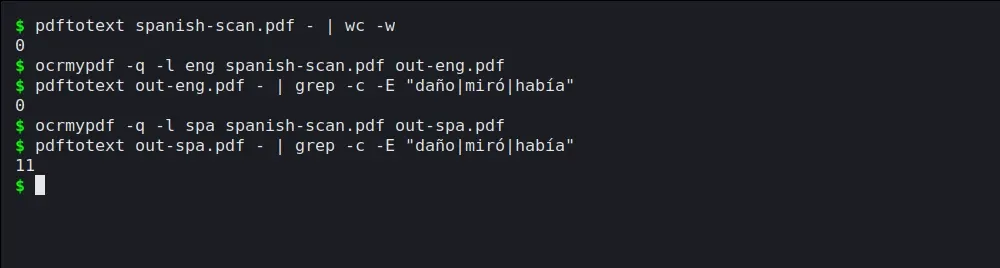
Real run on the Spanish test page. The grep counts how many times daño, miró and había come out right.
OCR several PDFs at once
A loop does it for a folder.
mkdir -p searchable
for f in scans/*.pdf; do
  ocrmypdf --skip-text "$f" "searchable/$(basename "$f")"
done
--skip-text leaves pages that already have text alone, which stops a mixed folder from failing with exit code 6. The OCRmyPDF docs recommend GNU Parallel for bigger jobs, with -j 2 because both tools want every core. The full walkthrough, with logs, exit codes and a failure playbook, is in batch OCR PDF.
A free app instead, NAPS2
NAPS2 8.4.0 is free (GPL-2.0-or-later) and runs on Windows, macOS and Linux. It suits occasional files and anyone who likes seeing the pages. It uses Tesseract as well.
- Open NAPS2 and click Import, then choose the PDF.
- Click OCR. The first time, it offers to download the language you need.
- Tick Make PDFs searchable using OCR and pick the language from the menu. The mode setting trades speed for accuracy.
- Click Save PDF and give the result a new name.
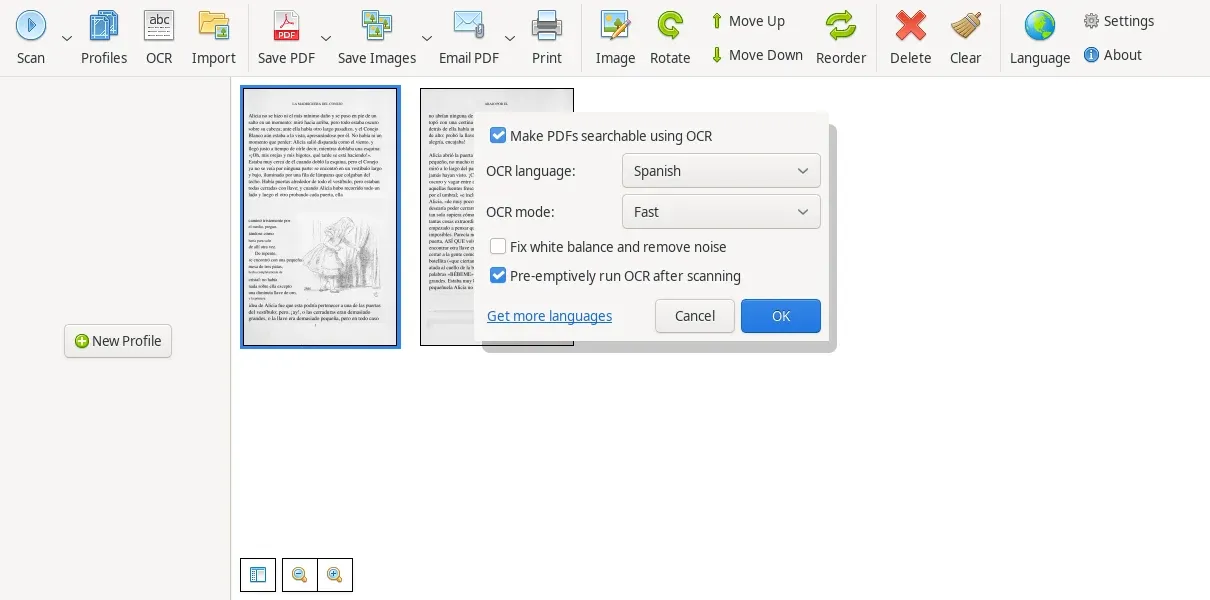
NAPS2 8.4.0 on Linux, with the Spanish test pages imported.
The same file saved through NAPS2's window and through its command line (naps2 console -n 0 -i scan.pdf -o out.pdf --ocrlang spa) both gave 513 words, and the result matched OCRmyPDF's Spanish accuracy at 99.6 percent. According to its docs, NAPS2 only OCRs pages that have no text, so a mixed PDF keeps the good pages as they are.
Check that the PDF is really searchable
Open the saved copy and search for a distinctive word from the page. Then select a paragraph, paste it into a text editor and read it. Accented letters, numbers, names and small print are where OCR slips first, so check those on purpose.
For a batch, sample several files, since the first one proves little. One line shows words per file, and a zero stands out.
for f in searchable/*.pdf; do echo "$(pdftotext "$f" - | wc -w) $f"; done | sort -n
Fixing poor OCR results
Tesseract's own advice on image quality is to scan at 300 dpi or more, with dark text on a light background, and to remove noise and straighten skewed pages. Rescanning beats every setting, and in my earlier batch test no amount of cleanup rescued a page I'd degraded to about 70 dpi.
Match the language setting to the page, because that was the biggest single gain in my test. Try --deskew for tilted scans, and re-run the failures with different options while keeping a log of what failed. Handwriting, very small type and badly damaged pages may still need a human to type them in.
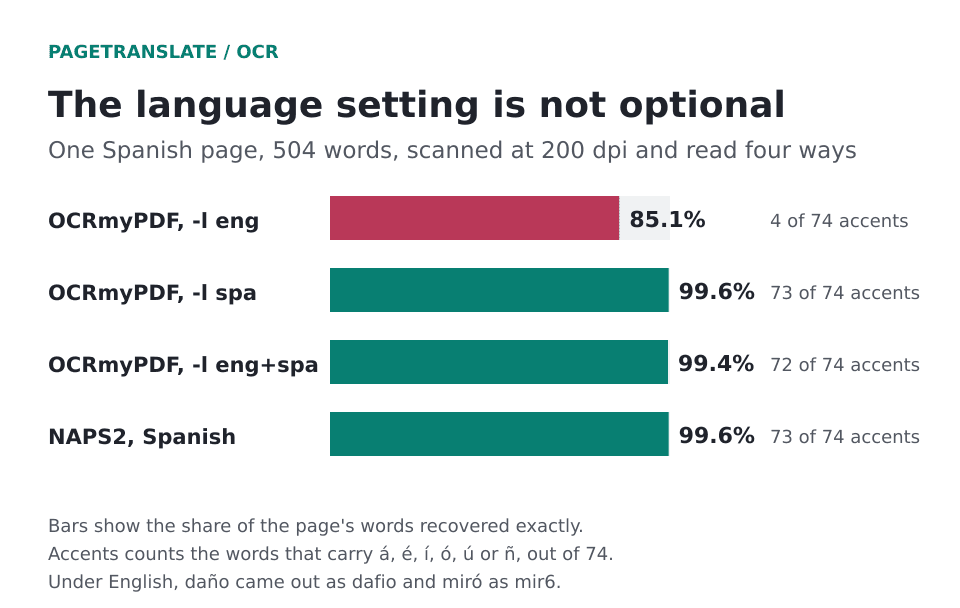
Same page, four settings. Under the English setting, daño came out as dafio and miró as mir6.
Make a scan searchable before translating it
OCR makes text selectable, which makes easier to extract, quote, review and reuse. A reasonable order is to scan, run OCR, check the text, then translate.
You don't have to OCR first for PageTranslate. It reads scanned PDFs in English, French, German, Italian, Portuguese and Spanish itself, and the PDF translator page covers what comes back. Long scans are handled in translating large PDFs, and the security page says how uploads are treated. I haven't tested whether pre-OCR changes the translation, so I won't promise a gain. Make the searchable copy when you want it for your own archive, and keep the original too. For whole books, there is the book translation page, the wider document translation software page lists every supported format, and turning a scanned document into a PDF covers the scanning side.