Batch OCR PDF: Process Many Scanned Files Fast (OCRmyPDF Guide)
By PageTranslate Team · · 8 min read
To batch OCR PDF files, loop OCRmyPDF over the folder and write the results to a second one. It takes a handful of lines once OCRmyPDF is installed.
mkdir -p ocr
for f in scans/*.pdf; do
  ocrmypdf -l eng --skip-text "$f" "ocr/$(basename "$f")"
done
Each file that succeeds lands in ocr/ searchable, with the original page image untouched, and --skip-text leaves any page that already has text alone. The catch is that OCRmyPDF exits 0 even when a page comes out with no text at all. In my test a badly scanned page finished with exit 0 and zero words, and a sideways page came back readable but still lying on its side. A one-line check below finds the first kind in seconds, and the fixes for both follow.
Everything here ran on OCRmyPDF 17.13.0 with Tesseract 5.3.4, using scans of Alice's Adventures in Wonderland and a few born-digital pages.
Scans in six languages are read for you. Exact price before you pay.
What batch OCR is, and when you need it
OCR turns a picture of a page into text a computer can search. OCRmyPDF tucks that text underneath the original image, so the page looks the same and you can search and copy it. Batch means a whole folder, one set of options and one log.
Old paperwork archives, research papers somebody scanned in 2009, legal files and anything headed for translation are the usual jobs. And with identical settings on every file, an odd result points at that file,, since the settings were the same everywhere.
OCRmyPDF in brief
It's free (MPL-2.0 license), written in Python, and drives Tesseract and Ghostscript. Every desktop system works, and there are Docker images. It keeps the page layout and adds the text layer. PDF/A output is available for archives. It can't read handwriting, its accuracy can trail paid engines, and multi-column pages sometimes come out in the wrong order. The docs say so themselves.
# macOS, or Linux with Homebrew
brew install ocrmypdf

# Debian or Ubuntu (the packaged version can lag, so check ocrmypdf --version)
sudo apt install ocrmypdf

# Windows (the install page covers Ghostscript)
winget install -e --id tesseract-ocr.tesseract
winget install -e --id astral-sh.uv
uv tool install ocrmypdf

# Docker
docker run --rm -i jbarlow83/ocrmypdf-alpine - - <in.pdf >out.pdf
Get the folder ready
Put every PDF in one folder (mine is scans/), make ocr/ and logs/ beside it, and keep file names free spaces if you can. OCRmyPDF never overwrites the input unless you name the same path for the output. Keep the originals read-only anyway.
Two checks before a long run. Does a file already have text? pdftotext file.pdf - | wc -w tells you, or you can let OCRmyPDF tell you, as it did for my born-digital file with exit code 6. And how big are the pages? Memory grows with the largest page. The docs' rule of thumb is about 15 bytes per pixel per job, which puts a Letter page at 600 dpi near 500 MB for one job and 2 GB for four.
Pre-cleaning is optional. --deskew straightens tilted pages, and --clean runs unpaper first. I didn't install unpaper, so --clean stayed untested here.
Basic batch commands
One file is ocrmypdf input.pdf output.pdf. The loop at the top throws away what you would need to debug a bad file, so this version keeps a log per file and writes every exit code to a text file. I ran it on nine test PDFs. Four were clean scans. The other five were a PDF that already had text, a wrecked scan, a sideways page, a password-protected file and one cut off mid-file.
mkdir -p ocr logs
for f in scans/*.pdf; do
  name=$(basename "$f")
  ocrmypdf -l eng "$f" "ocr/$name" > "logs/${name%.pdf}.log" 2>&1
  echo "$? $name" | tee -a logs/exit-codes.txt
done
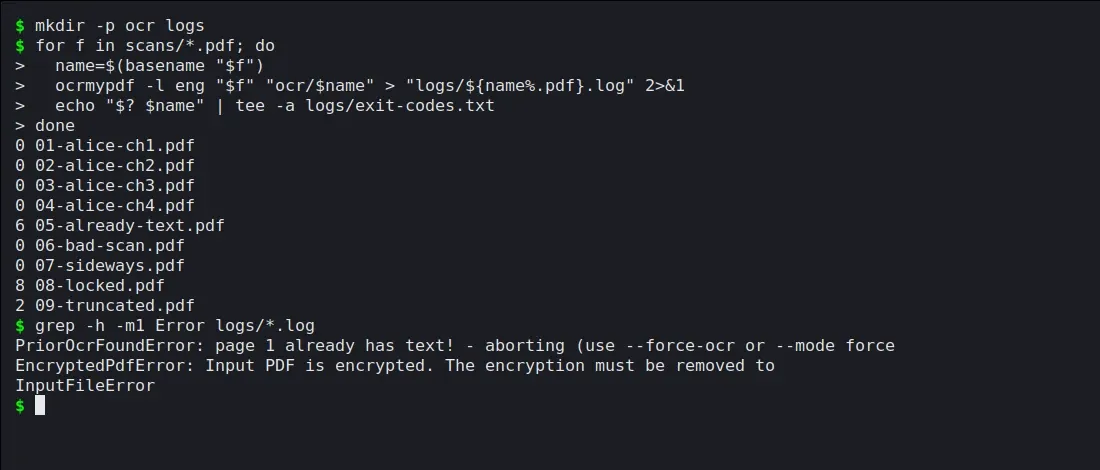
The loop, run for real. Nine files took about 15 seconds in total on a 32-thread machine.
For nested folders, find keeps the structure. I tested this one with a file in scans/2019/q1/ and another called with space.pdf.
find scans -name '*.pdf' | while read -r f; do
  out="ocr/${f#scans/}"
  mkdir -p "$(dirname "$out")"
  ocrmypdf -l eng "$f" "$out" > "$out.log" 2>&1
  echo "$? $f"
done
Both GNU Parallel and OCRmyPDF want every core, which is why the official batch page suggests -j 2. I didn't have Parallel installed, so I timed xargs instead. Seven files took 12.5 seconds in a plain loop and 6.5 seconds this way.
ls scans/*.pdf | xargs -P 4 -I{} sh -c 'ocrmypdf --jobs 1 -l eng --skip-text "$1" "ocr/$(basename "$1")"' _ {}
On Windows, the cmd form from the docs is for %f in (scans\*.pdf) do ocrmypdf -l eng "%f" "ocr\%~nxf", with doubled percent signs inside a .bat file. I haven't run that on Windows.
Choose languages and settings at scale
-l eng+spa loads both language packs for pages that mix English and Spanish. Tesseract can't guess the language, so list everything that appears. tesseract --list-langs shows what is installed (mine printed eng, osd and spa).
| Option | What it does | What I saw |
|---|---|---|
--rotate-pages | Turns a page upright when orientation detection is confident (default threshold 14) | Fixed my sideways page at confidence 15.49. A title page and an illustration page scored 2.08 and 0.01 and were left alone. |
--deskew | Straightens tilted scans | The output file came out about twice the size, because deskewing re-encodes the image. |
--skip-text | Leaves pages that already have text untouched | My exit 6 file went through with exit 0. |
--force-ocr | Rasterizes every page and OCRs the picture | Turns real text and vector art into pixels. A last resort. |
--redo-ocr | Replaces an old OCR layer | Can't be combined with --deskew. |
--output-type pdf | Skips PDF/A conversion | The default, auto, writes PDF/A-2b when it can and a plain PDF when it can't. |
--tesseract-timeout | Gives up on a page after N seconds | 180 by default. The page is skipped and the run carries on. |
--sidecar writes the recognized text to a .txt file next to the PDF. --tesseract-oem (0 to 3) and --tesseract-config are there for people who know what they want from Tesseract. I'd rather run two slow passes than one clever one, but that's taste.
Verify OCR quality across many files
Exit code zero doesn't mean the file has text. My 06-bad-scan.pdf came back with exit 0 and a PDF holding no words at all.
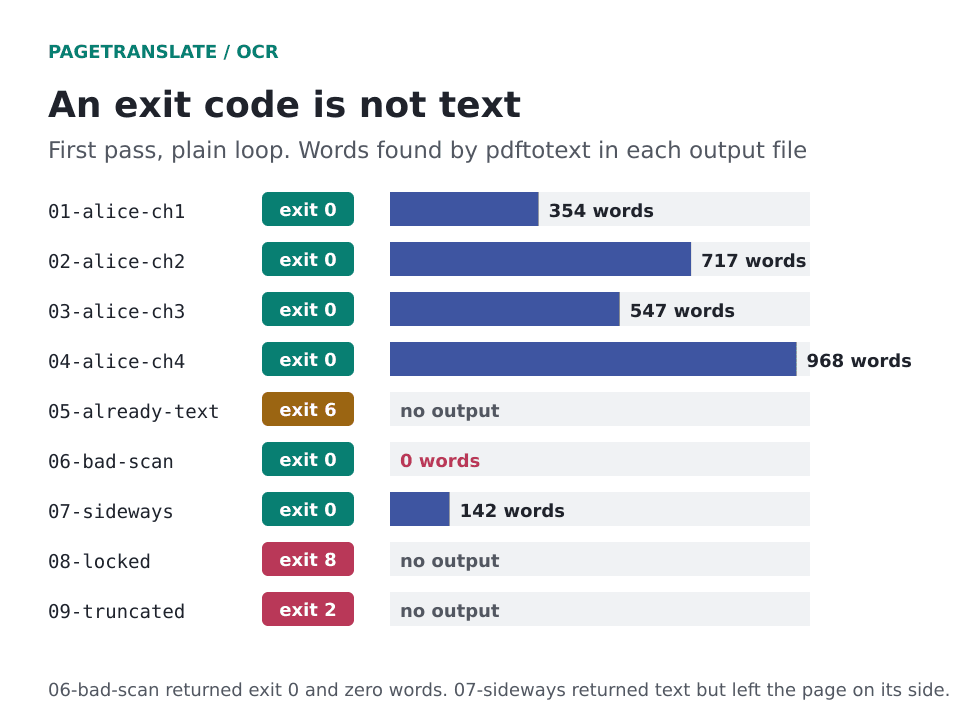
Exit codes next to words found. Only the second column tells you whether the file is any use.
One line catches that, and sorting puts the suspects at the top.
for f in ocr/*.pdf; do echo "$(pdftotext "$f" - | wc -w) $f"; done | sort -n
Then sample. With nine files I read all of them. With nine hundred I'd open five to ten percent. Search for a rare word, then paste a paragraph into a text editor to see what the engine heard. On the printer's imprint of my first scan, "Richard Clay and Sons, Limited" came out as "RicHarp Ciay AND Sons, LimiTED". Small capitals do that to Tesseract.
For deeper checks, --sidecar gives you plain text to spell-check or diff. It only holds text OCRmyPDF recognized, so pages it skipped won't appear in it.
Handle failed and problem files
Three files failed loudly, each with a different exit code.
| Exit | Log says | Meaning | What worked |
|---|---|---|---|
| 6 | PriorOcrFoundError: page 1 already has text | The PDF is already searchable | --skip-text copies it through (670 words) |
| 8 | EncryptedPdfError | Password-protected | qpdf --decrypt first, only for files you may open |
| 2 | InputFileError | Damaged or not a PDF | Fetch it again (mine was cut to 6,000 bytes) |
The full list of codes from the docs runs 0 (fine), 1 (bad arguments), 2 (invalid input), 3 (missing dependency), 4 (invalid output), 5 (file access), 6 (already has text), 7 (child process failed), 8 (encrypted), 9 (bad configuration), 10 (PDF/A conversion failed), 15 (other) and 130 (interrupted).
To collect the failures for a second look, read the exit-code file back.
mkdir -p failed
awk '$1 != 0 {print $2}' logs/exit-codes.txt | while read -r name; do cp "scans/$name" failed/; done
But the quiet failures are harder. My sideways page returned exit 0 and readable text, but the page itself stayed on its side until I added --rotate-pages.
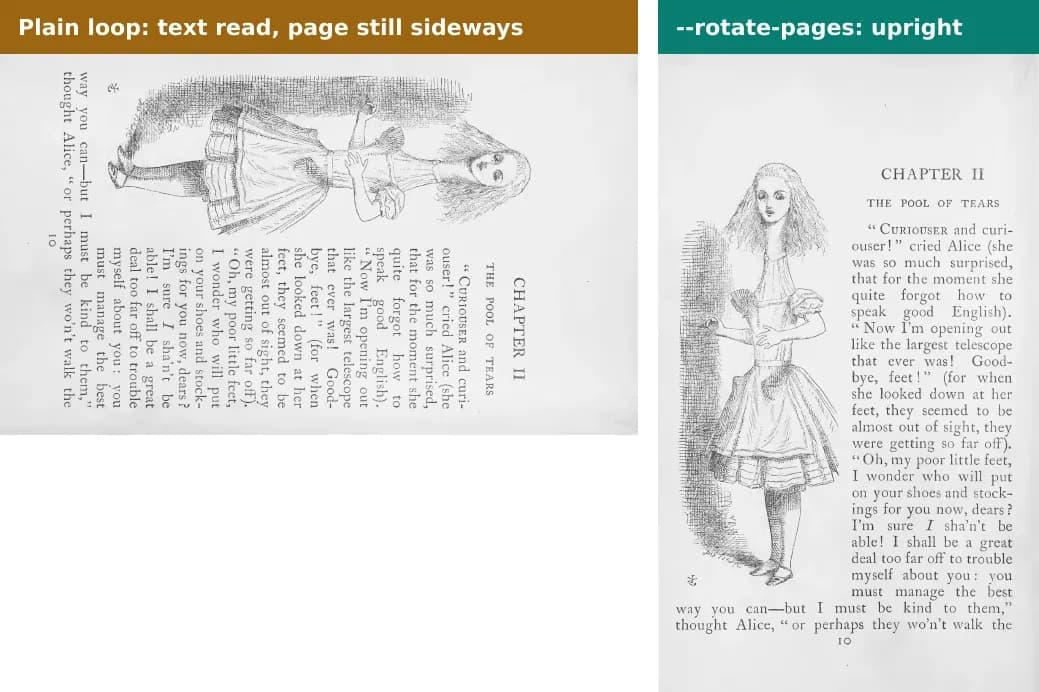
Printed page 10 of the sideways test file, before and after --rotate-pages.
The wrecked scan was a page I shrank to about 70 dpi, tilted, blurred and sprinkled with noise. I tried --oversample 300 --deskew --force-ocr and got 7 words. I tried upscaling in ImageMagick with a median filter and a hard threshold and got 21 words of nonsense that started "lott ne ee". Seven words of nonsense is worse than none, since it looks like success. The fix is a rescan at 300 dpi. (--image-dpi only applies to image inputs, so it can't rescue a low-resolution PDF.)
Flag what you can't rescue for manual transcription or a professional service, and keep the log with it.
Where batch OCR fits with translation
PageTranslate reads scanned PDFs in English, French, German, Italian, Portuguese and Spanish on its own, so OCRmyPDF isn't a required first step. I haven't tested whether running it first changes the translation, which means I won't claim a gain. Run it when you want searchable originals for your own archive or for software that needs a text layer in the source.
For Chinese, Japanese, Korean or Arabic scans the service isn't reliable today, and a PDF with selectable text works better there.
After translation, check before you OCR again. In an earlier QA run of ours, a three-page scanned excerpt came back as a Spanish PDF with selectable text (about 665 words by pdftotext). Search for a phrase in yours first.
Two more pages that may help are the scanned document to PDF guide for creating the scans in the first place, and the notes on translating large PDFs. Scanned books go through the book translation page, and the cost FAQ explains how the quote is worked out. Local OCR keeps files on your own machine. How the service handles uploads is on the security page, and the wider workflow lives under document translation software.